1. Getting started
1.1 How GoVisually is organized
GoVisually stores your work in a fixed hierarchy:
Workspace → Project → Section → Proof → Version
- A workspace is your company account. It holds all members, settings, and projects. Some screens call it a "Team".
- A project groups related proofs. For example: one product line, one campaign, or one market.
- A section is a named group of proofs inside a project. For example: one SKU, or one packaging format.
- A proof is one artwork file under review. For example: a carton PDF, a label image, or a video.
- A version is one uploaded iteration of a proof. Versions are numbered V1, V2, V3, and so on.
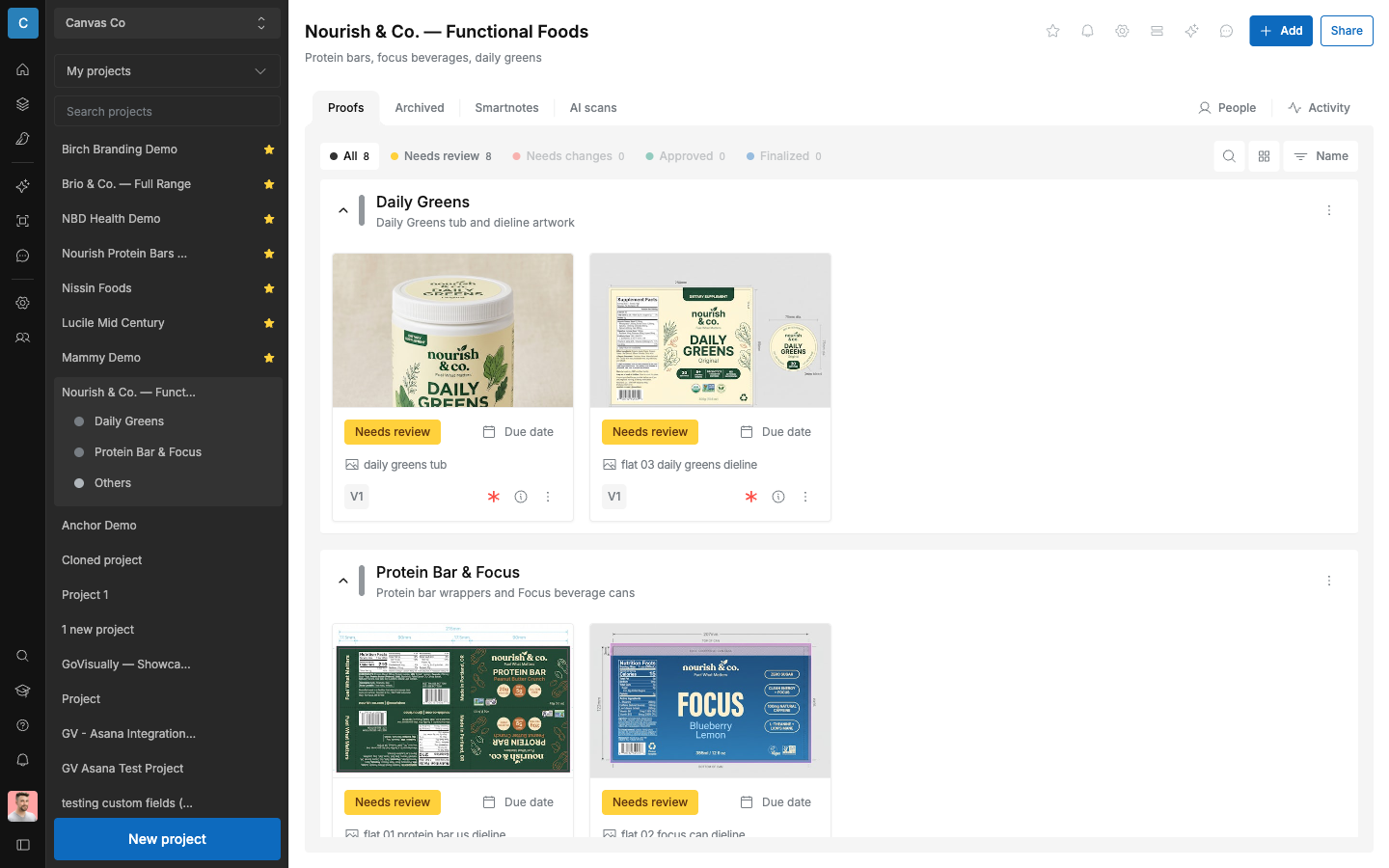
Example for a CPG team
- Workspace: Nourish & Co.
- Project: VitaBoost — 2026 Refresh
- Section: VitaBoost Immune 60ct — US (one per SKU and market)
- Proof: vitaboost-immune-60ct-carton.pdf
- Versions: V1 (first draft), V2 (RA corrections), V3 (final)
1.2 Who can do what
GoVisually has two kinds of people: workspace members and reviewers.
| Role | Can do | Cannot do |
|---|---|---|
| Workspace admin | Everything a member can do. Also: manage members, billing, integrations, security settings, and the "Bird's eye" overview. Remove another person's review decision. | — |
| Workspace member | Create projects and sections. Upload proofs and versions. Comment, approve, and finalize proofs. See private team comments. | Manage members or billing. |
| Reviewer | Open shared projects and proofs. Comment. Select "Approve" or "Needs changes". | Upload or edit anything. Finalize a proof. See private sections or private team comments. |
| Link visitor (no account) | Open a shared link. View and comment. | Everything else. Their access is not saved as a membership. |
Notes:
- A reviewer does not need a paid seat. Reviewers are invited per project.
- A review decision from a reviewer counts the same as a decision from a member.
- Only workspace members can finalize a proof. See chapter 4.
1.3 The sidebar
The icon rail on the left side is the main navigation.
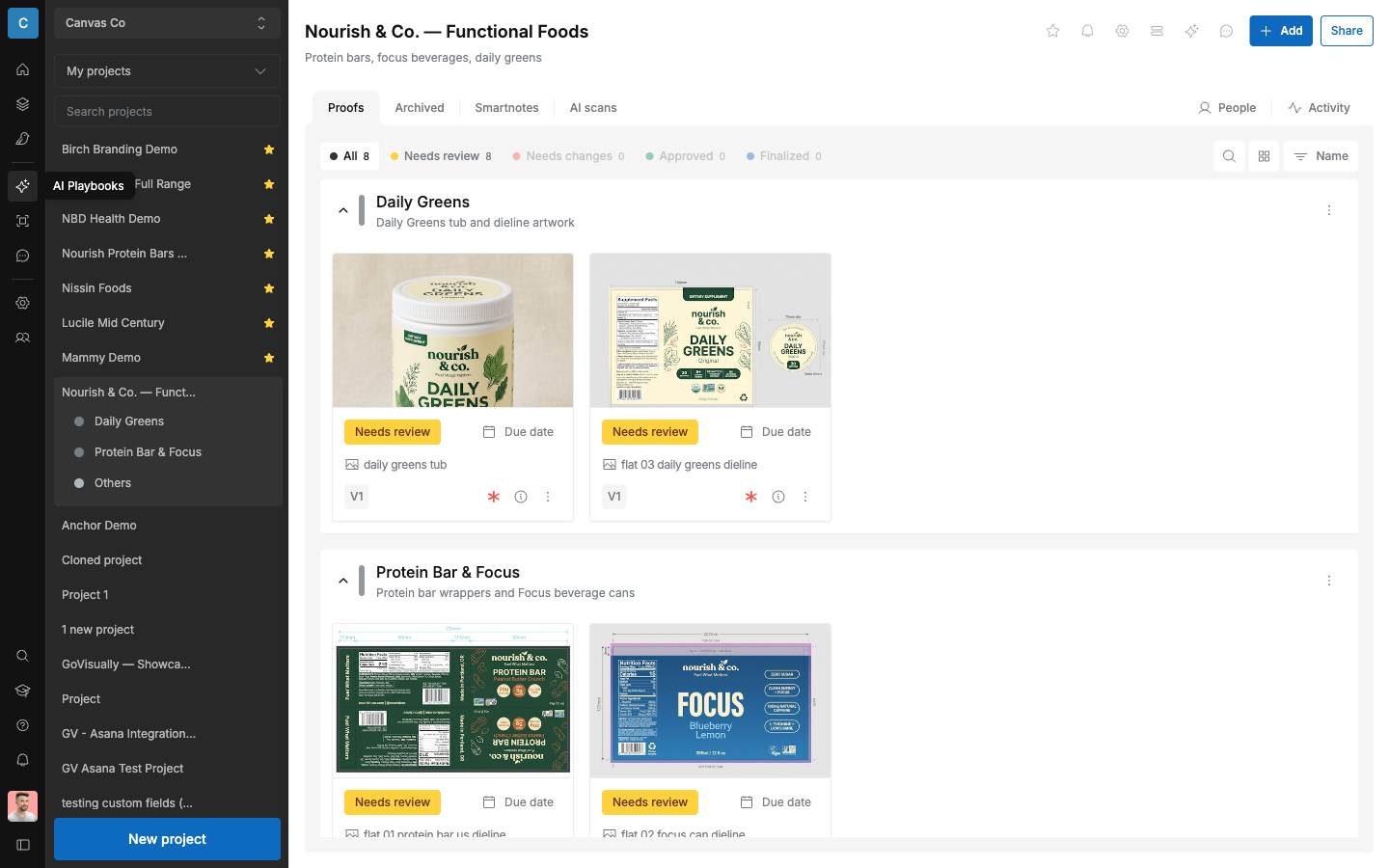
| Icon (tooltip) | What it opens |
|---|---|
| "Home" | Your dashboard, with recent activity and "Recent comments". |
| "Projects" | Your project list. |
| "Bird's eye" | An overview table of all projects and proofs. Admins only. See chapter 11. |
| "AI Playbooks" | AI checking setup. See chapter 7. |
| "Print Proof Checker" | The tool that compares a printer's proof against approved artwork. |
| "GIA - AI assistant" | The AI chat. See chapter 10. |
| "Team settings" | Workspace settings. See chapter 11. |
| "Team members" | The member list. |
| "Quick Search (⌘ K / Ctrl K)" | Search across projects and proofs. See below. |
| "GoVisually Academy" | Learning content. |
| "Help" | Help resources. |
| "Notifications" (bell) | Your notification feed. |
1.4 Quick search
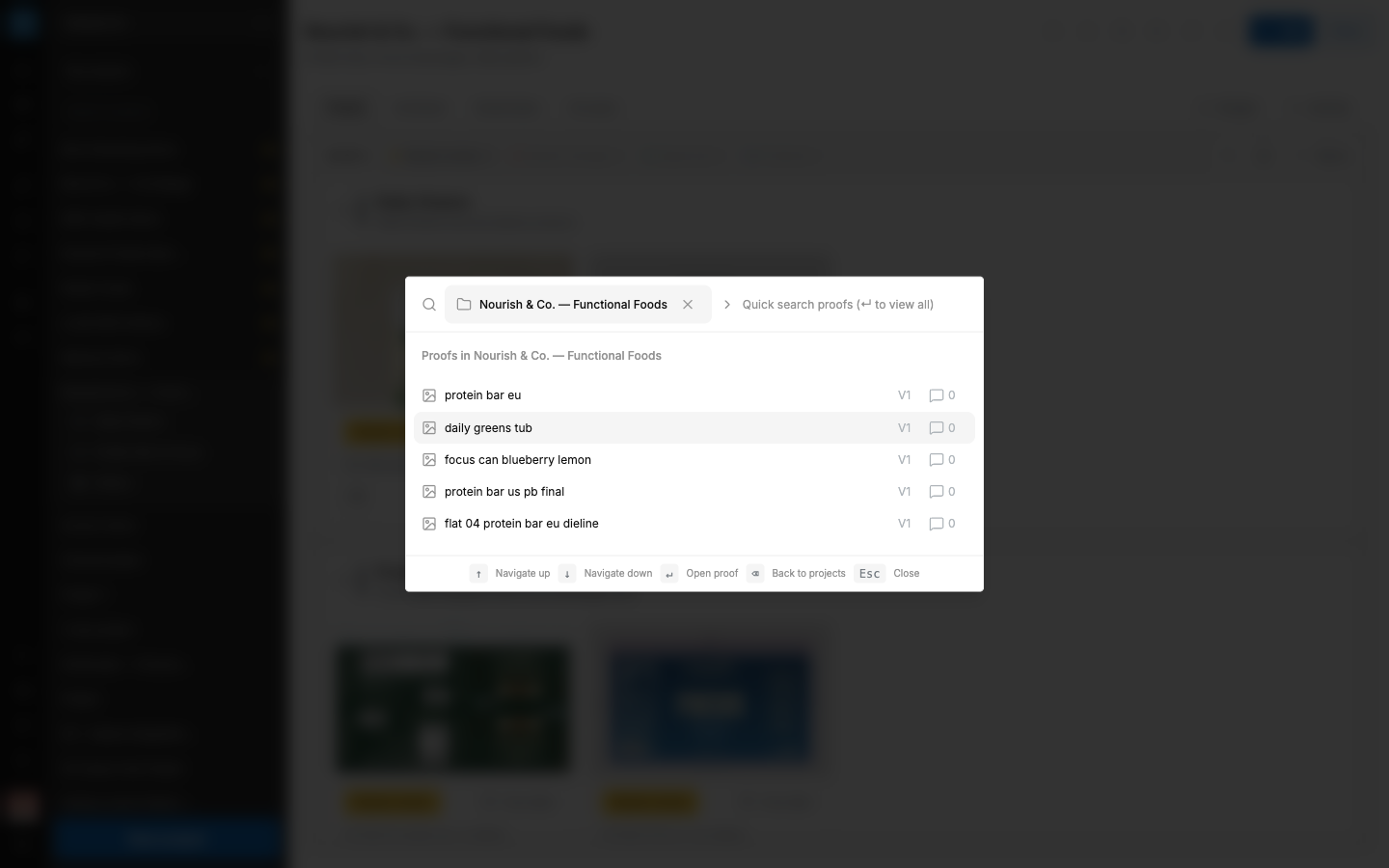
Use quick search to jump to any project or proof.
- Press ⌘ K (Mac) or Ctrl K (Windows). Or select the search icon in the sidebar.
- The "Quick search" window opens. Type in the "Quick search projects..." field.
- Select a project to see its proofs. The field changes to "Quick search proofs (↵ to view all)".
- Select a proof and press Enter to open it.
- Use the arrow keys to move up and down. Press Escape to close. Use "Back to projects" to return to the project list.
1.5 Signing in
Sign in at govisually.com with your email and password. If your company uses single sign-on (SSO), sign in through your identity provider instead. SSO setup is described in chapter 11.
1.6 Manage your notifications
GoVisually notifies you in two ways: the notification bell in the app, and email. You control both.
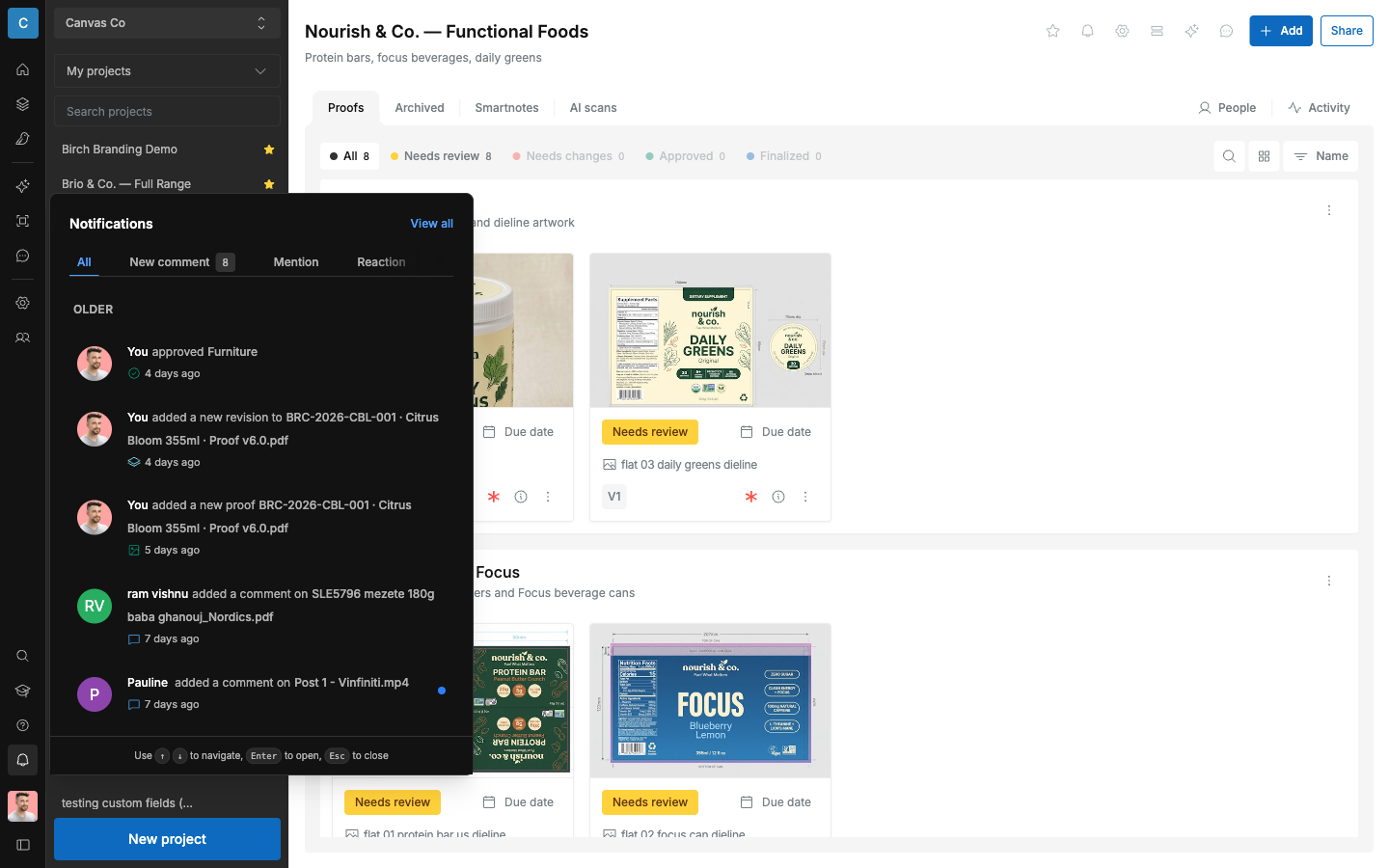
The notification bell
- Select the "Notifications" bell in the sidebar.
- The feed lists activity, grouped by time (for example "Older"; recent activity groups under headings such as "Today").
- Filter with the tabs: "All", "New comment", "Mention", "Reaction". Each notification also names its event: a proof approved, a new revision, a new proof, or a comment.
- Select a notification to open the related proof or comment.
- Select "View all" to open the full notification history.
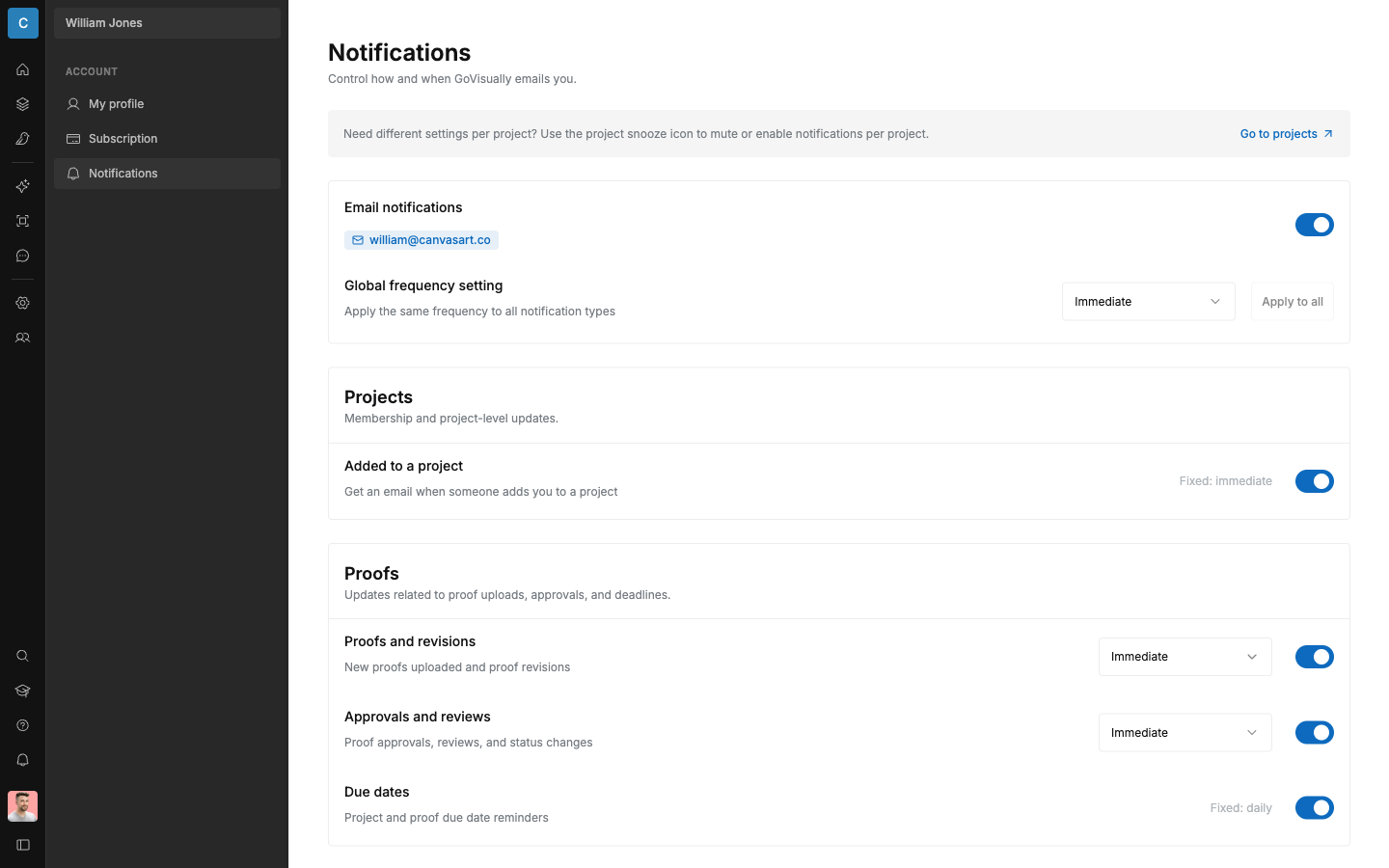
Email notification settings
Choose which events email you, and how often.
- Open "My profile", then "Notifications".
- The "Email notifications" switch at the top turns all notification emails on or off.
- Set the "Global frequency setting": "Immediate", "Hourly", "Daily", or "Weekly". This controls how often GoVisually bundles events into emails.
- Turn each event type on or off. Each type also has its own frequency. Some types have a fixed frequency and show a label such as "Fixed: immediate".
- Select "Save changes". You see: "Email notification preferences have been updated."
The event types, as grouped on the screen:
| Group | Event type | Emails you about |
|---|---|---|
| "Proofs" — "Updates related to proof uploads, approvals, and deadlines." | "Proofs and revisions" | "New proofs uploaded and proof revisions" |
| "Approvals and reviews" | "Proof approvals, reviews, and status changes" | |
| "Due dates" | "Project and proof due date reminders" | |
| "Comments" — "Activity on discussions and direct mentions." | "Comments and replies" | "New comments on proofs and replies to your comments" |
| "Mentions" | "When someone mentions you in a comment" | |
| "Projects" — "Membership and project-level updates." | "Added to a project" | "Get an email when someone adds you to a project" |
Snooze one project
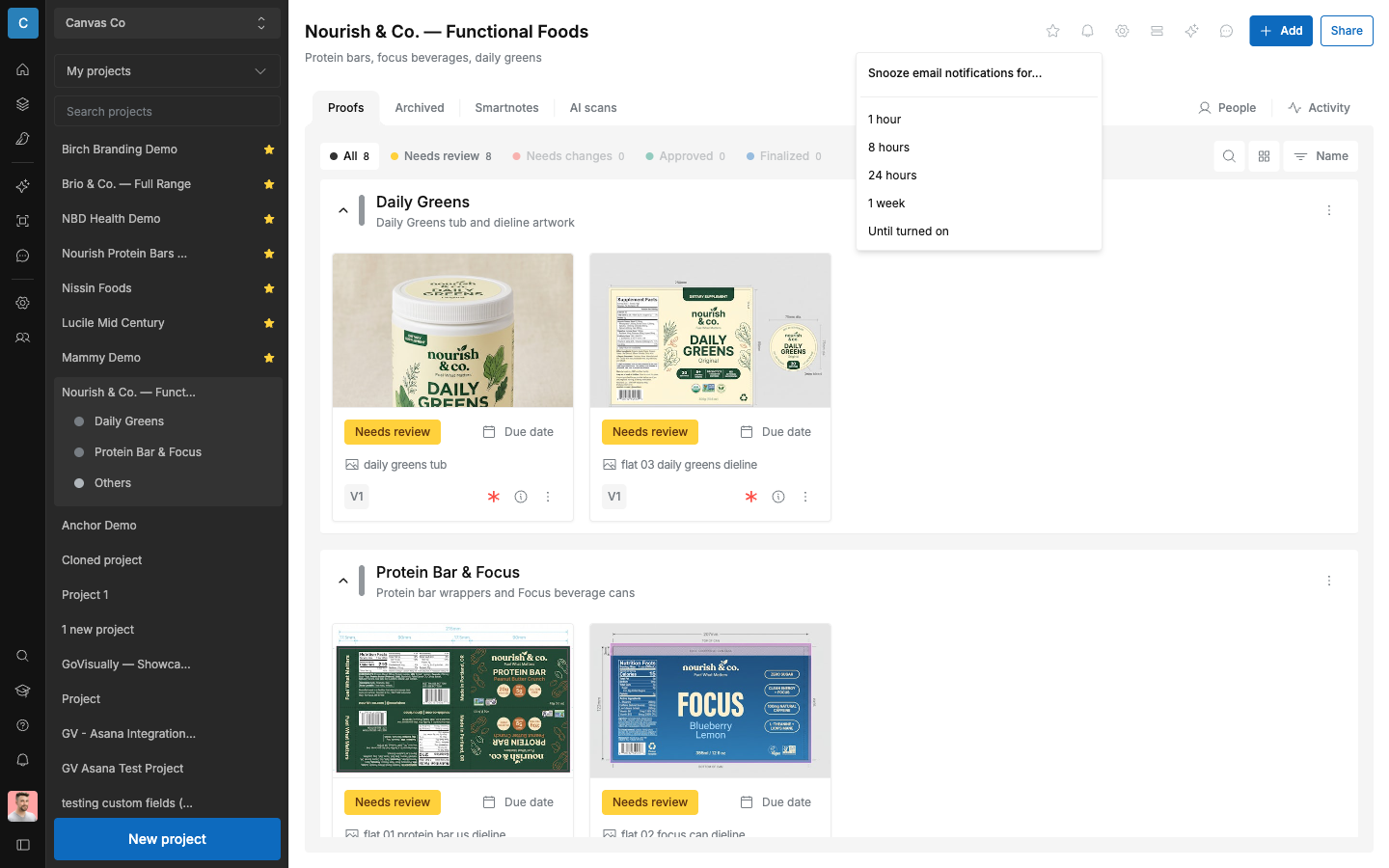
Pause emails from a busy project without changing your other settings.
- Open the project and select the snooze button in the project header.
- Choose a duration: "1 hour", "8 hours", "24 hours", "1 week", or "Until turned on".
- You see a confirmation: "Email notifications snoozed until {date}", or "Email notifications snoozed indefinitely".
- To resume emails, select the snooze button again and turn snooze off.
Suggested setup per role
- Designer: keep "Comments and replies" and "Approvals and reviews" on "Immediate". Your rework starts from these.
- RA / R&D: set the global frequency to "Daily" during quiet periods. Keep "Mentions" immediate, so direct questions reach you fast.
- Marketing / project owners: keep "Due dates" on. Snooze noisy projects instead of turning email off completely.