11. Workspace administration
This chapter is for workspace admins. Open "Team settings" from the sidebar. Settings are grouped: "Workspace", "Branding", "Workflows", "Integrations", "Security & compliance".
11.1 Members ("Workspace" → "Members")
- Invite people to the workspace. Each member has a role: member or admin.
- Members use paid seats. Reviewers do not — invite reviewers per project instead (chapter 5).
- Admins can manage members, billing, integrations, and security, and can remove review decisions.
11.2 Subscription ("Workspace" → "Subscription")
Manage your plan, seats, and billing. Plan limits include: projects, storage, upload file size, proofs per project, versions per proof, reviewers per project, sections per project, and feature access (video review, private sections, recycle bin, integrations).
11.3 Branding
- "Logo & Branding" — add your logo to the review experience and emails.
- "Watermark" — apply a watermark to viewed proofs. Configure a watermark image or text, with position, transparency, and scale. Use it to protect unreleased artwork shared with external reviewers.
11.4 Workflows
"Global settings"
Team-wide defaults for projects, including download control: allow downloads for all revisions or for finalized revisions only.
"Approval checklist"
Define checklist items that reviewers must confirm before "Approve" completes (chapter 4). Keep items short and answerable with yes or no.
"Custom fields"
Create structured metadata fields for proofs. Field types: text, long text, number, date, toggle, select, multi-select, people (single and multiple), rating, multi-text. Fields are enabled per project, and values are set per proof.
CPG examples: SKU code (text), Market (select), Launch date (date), RA sign-off owner (people).
"Bulk operations"
Archive or clean up many projects at once ("Bulk operations" → bulk archive).
11.5 Integrations ("All integrations")
The "Integrations" page groups:
| Group | Integrations |
|---|---|
| "Apps & extensions" | Adobe (Creative Cloud extension — "Install"), iOS app — "Install", Chrome extension — "Add to Chrome" |
| "Direct integration" | Webhooks — "Configure", Slack — per-project notifications, Asana — "Connect", ClickUp / Monday.com — "Coming soon" |
| "Integration marketplace" | Zapier — "Enable", Make — "Coming soon", plus "Suggest an integration" |
Notes:
- The Adobe extension lets designers upload proofs directly from Photoshop, Illustrator, and InDesign.
- Slack is configured per project and posts review activity to a channel.
- Zapier and Webhooks let you connect review events to other systems (for example, your PLM). Some integrations require specific plans ("Request Access").
11.6 Security & compliance
- "Security & SSO" — single sign-on (SAML) setup for enterprise plans.
- "Audit logs" — a record of actions in the workspace, for compliance teams.
- "Recycle bin" — restore deleted projects, proofs, and versions. Plan feature.
11.7 Bird's eye (admin overview)
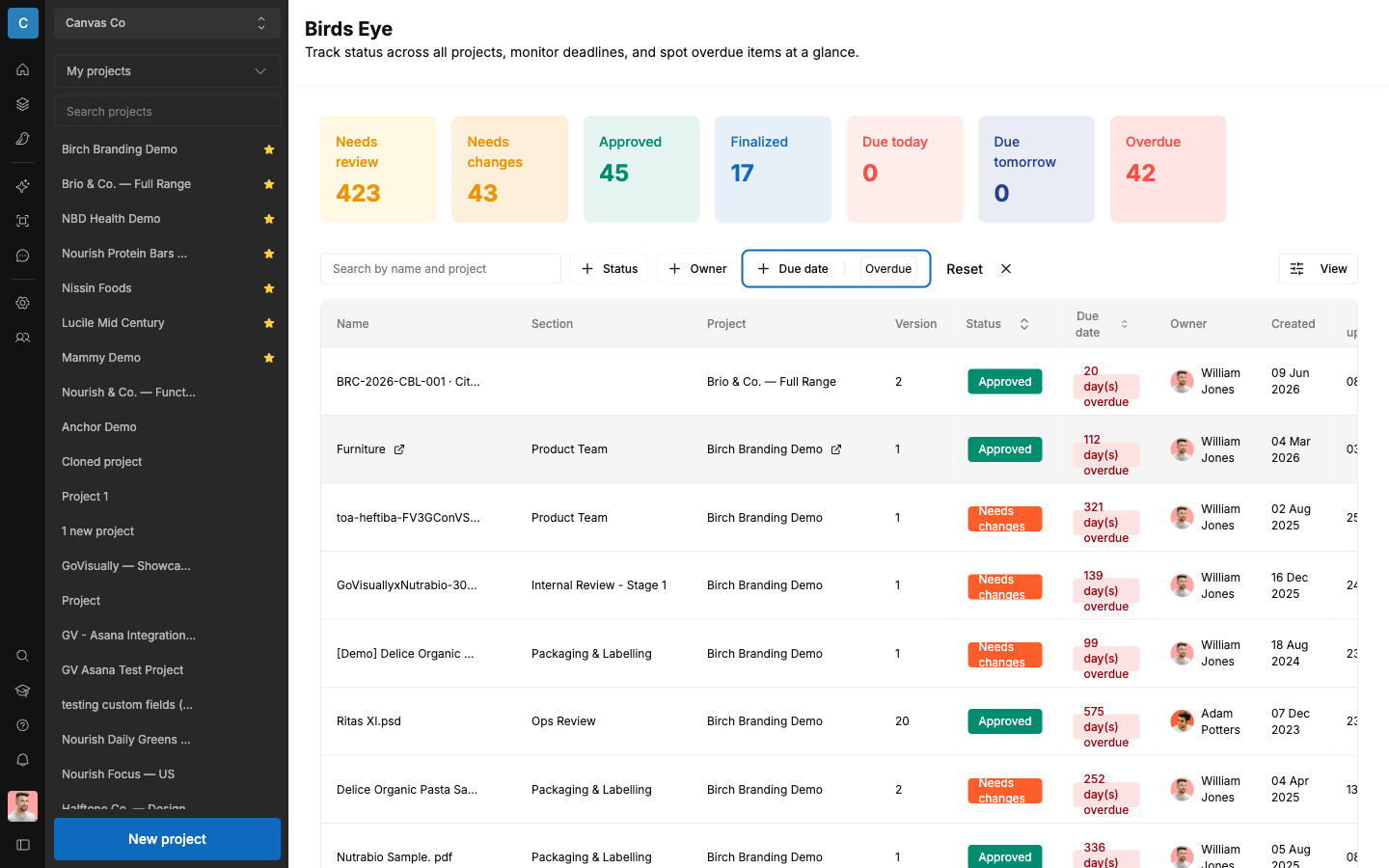
"Bird's eye" in the sidebar opens the "Birds Eye" screen: "Track status across all projects, monitor deadlines, and spot overdue items at a glance."
- Seven summary tiles at the top give you the numbers before you touch a filter: "Needs review", "Needs changes", "Approved", "Finalized", "Due today", "Due tomorrow", "Overdue".
- Below that, one table of every proof across every project. Columns: "Name", "Section", "Project", "Version", "Status", "Due date", "Owner", "Created".
- Filter with "+ Status", "+ Owner", and "+ Due date" (with the same options as the tiles: "Overdue", "Due today", "Due tomorrow"). Search by name and project. Select "Reset" to clear filters.
Use it as the operations view: everything overdue, everything waiting on review, across every product line.
11.8 Notifications
Notification settings are personal, not workspace-wide. Each person manages their own under "My profile" → "Notifications": a master email switch, a global frequency ("Immediate" / "Hourly" / "Daily" / "Weekly"), per-event-type controls, and per-project snooze. The full guide is in chapter 1, section 1.6. There is no admin control that sets notification preferences for other people.